


Apple CarPlay is, without a sliver of doubt, one of the best upgrades in your car, and it represents the modern driving experience. It bridges the gap between your iPhone and your car’s infotainment system.
But, there’s a catch. As any tech-savvy driver already knows, there are times when you simply want to cut the cord (or the wireless signal) and go offline and off the grid a little bit. It can be a privacy thing. There might be someone in your car, and you don’t want your texts splashed across the dashboard. You might simply want to manage your battery health on a long trip. Or, you might be troubleshooting a laggy interface that refuses to sync.
In any case, knowing how to disconnect is just as important as knowing how to connect. Sometimes, you just want to kick back, drive, and listen to the radio without your GPS interrupting every thirty seconds.
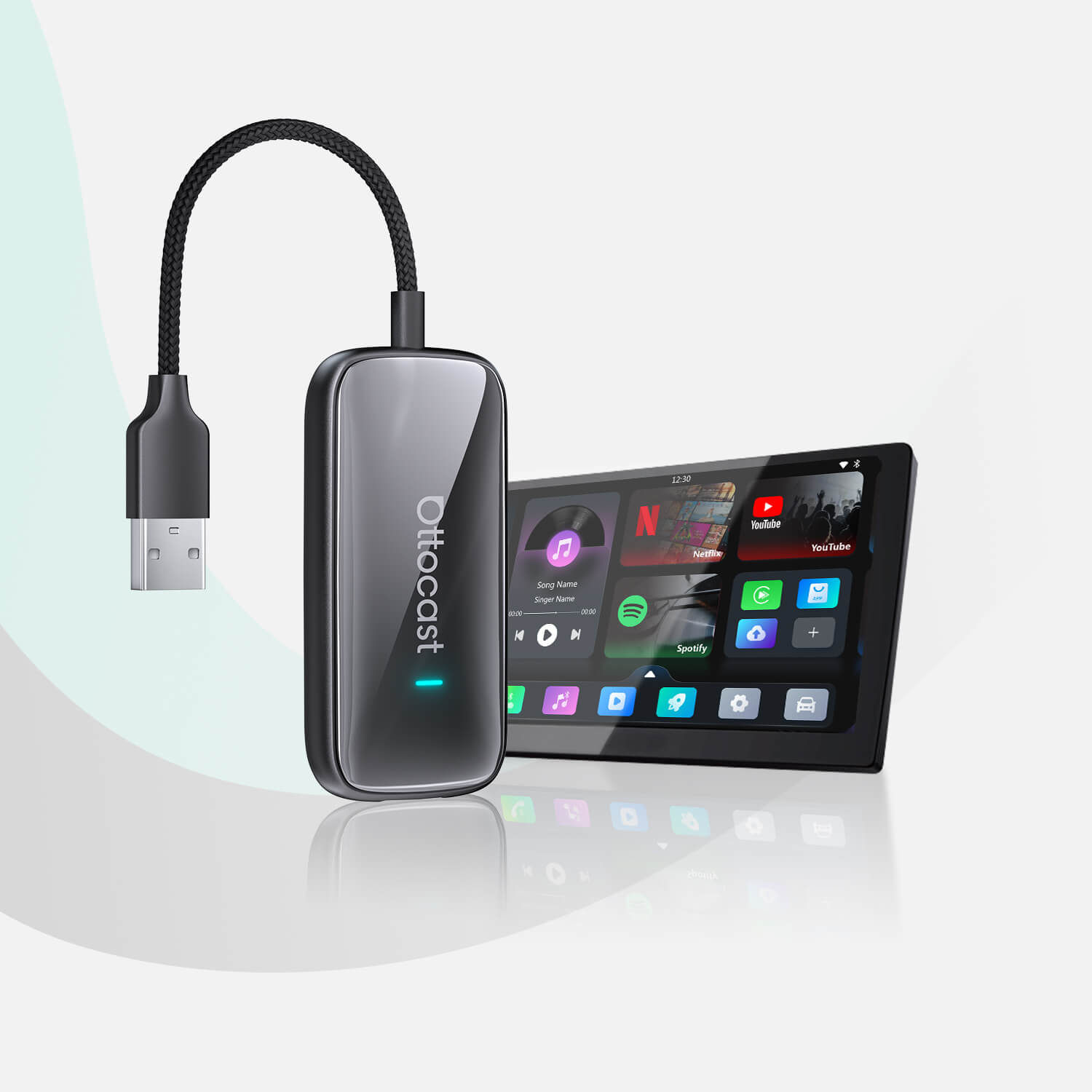
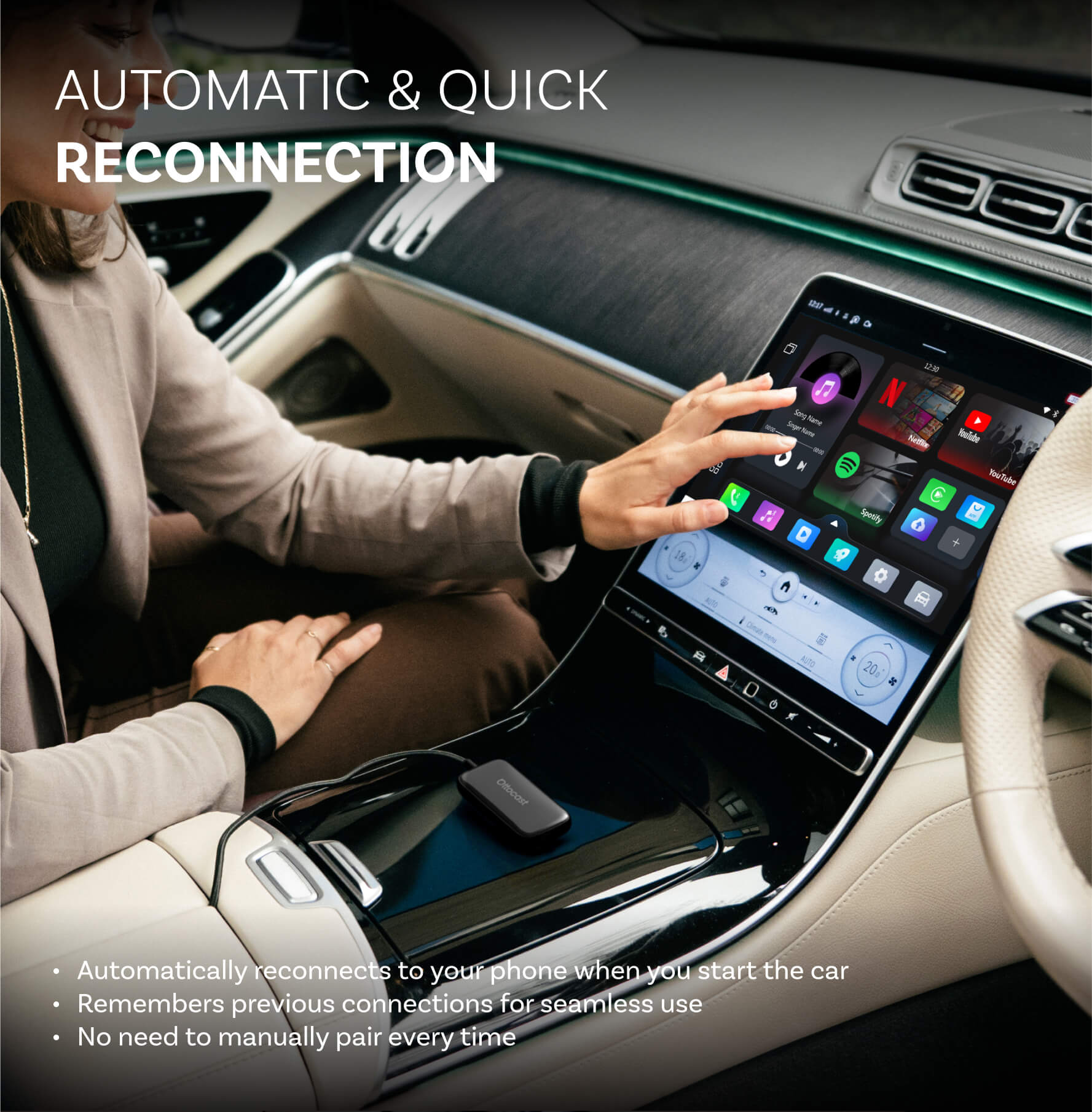
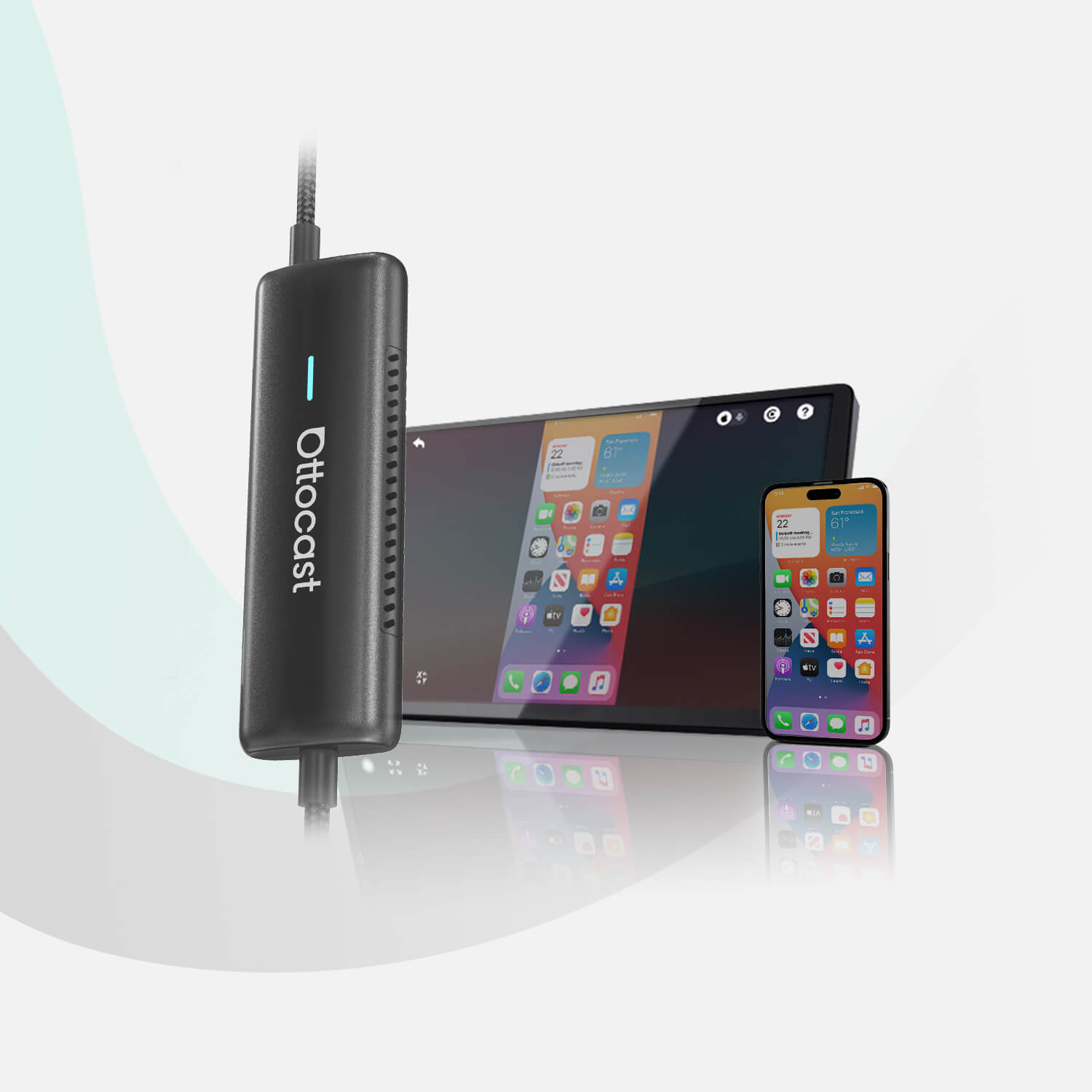
While most users praise the streamlined connectivity offered by Ottocast Wireless CarPlay Adapters, mastering the “off” switch will help you stay in complete control of your digital driving environment.
So, without further ado, let’s jump into the methods you can try.
Method 1: The “Quick Fix” (Temporary Disconnection)

We’ll start with the simplest method. Here, we will assume that you don’t need a permanent disconnection from your car’s brain. We will assume that you only need a temporary break for a single drive.
For Wired Setups:
The fastest way to achieve this depends entirely on your setup. If you are using a traditional wired connection, then the solution is as simple as unplugging the Lightning or USB-C cable from your iPhone. The interface will instantly vanish, returning you to the manufacturer’s stock home screen.
For Wireless Setups:
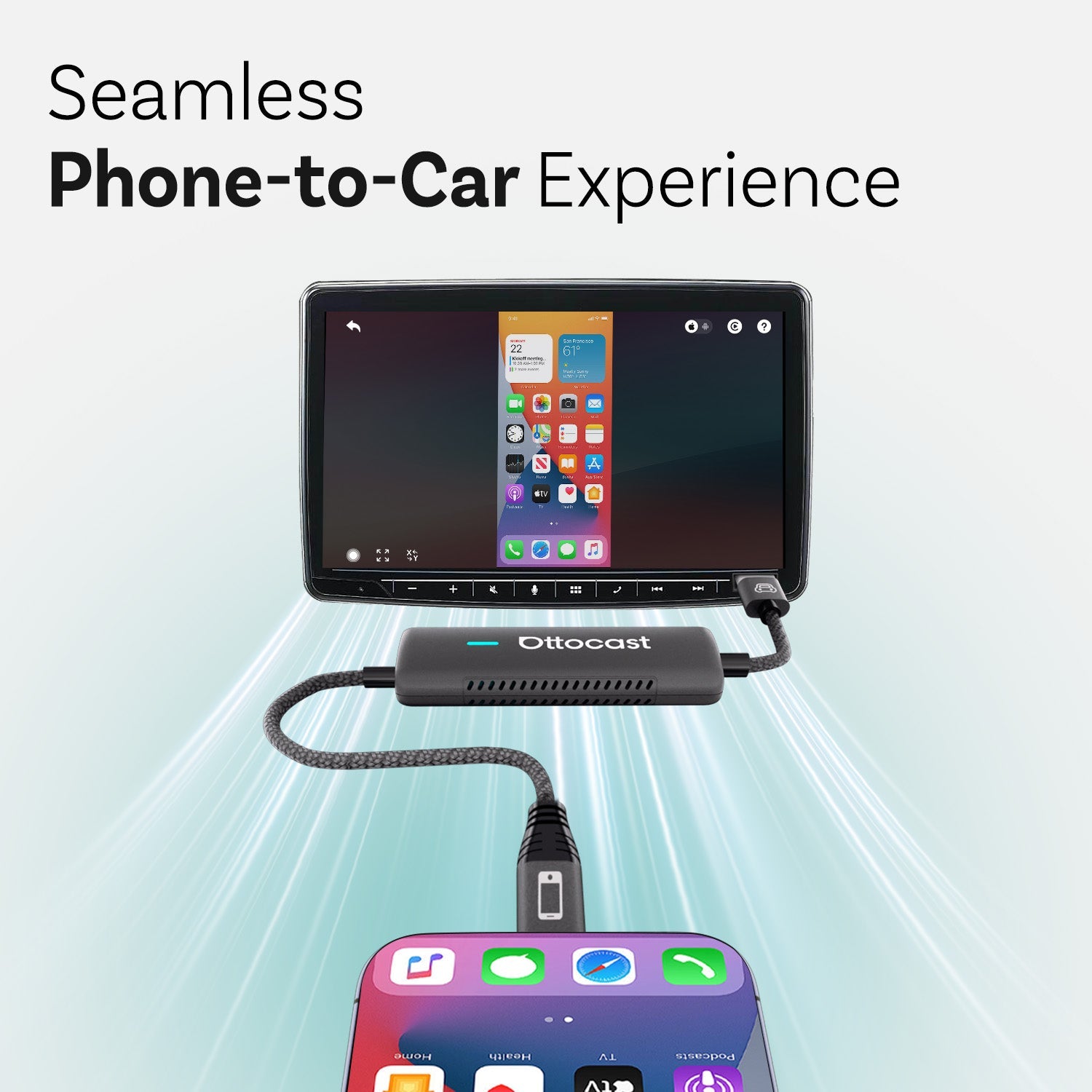
If you have a wireless setup, then the process requires a quick dip into your iPhone’s Control Center. Toggle off Bluetooth and Wi-Fi, and you sever the dual-band handshake required for CarPlay to work.
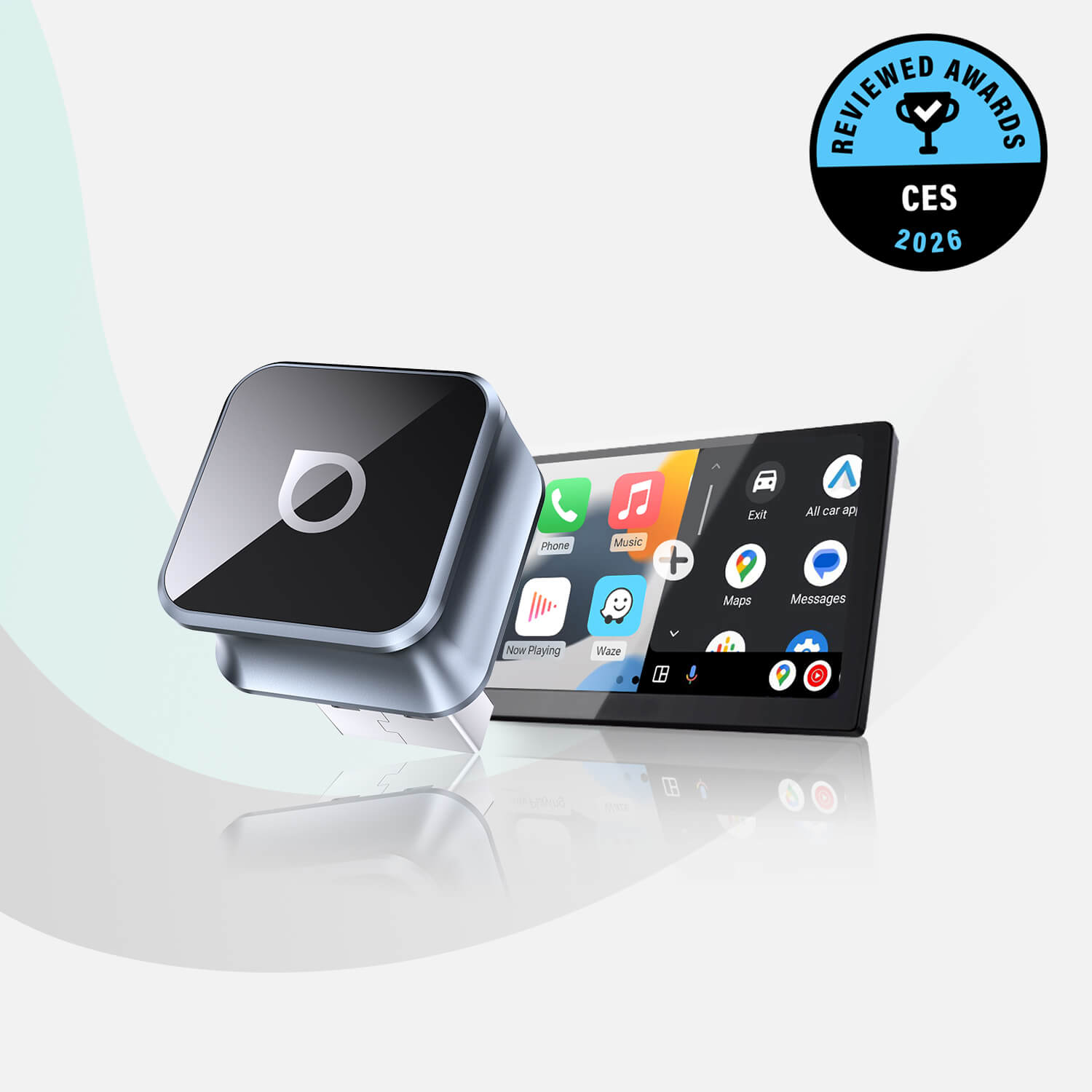
At this point, it’s important to note that if you are using high-performance hardware like the Ottocast U2-AIR Pro, which is famous for its industry-leading fast auto-connect feature, the device will attempt to re-establish that link the moment you turn your car back on.
So, as you can see, this “Quick Fix” is ideal for a quick trip to the grocery store, when you’d rather just enjoy a bit of silence or a local radio station without the automated CarPlay handshake taking over your speakers the moment you turn the ignition.
Method 2: “Forgetting” the Vehicle (Best for Troubleshooting)

If you notice that CarPlay is beginning to act a little sluggish, failing to launch, or dropping the connection in the middle of your drive, then you can try something people like to call a “soft reset,” especially if unplugging and plugging back in isn’t working.
In these cases, the most effective solution is to “forget” the vehicle entirely to clear out any corrupted cache or handshake errors. This forces the iPhone and the car to reconnect as if they were connecting for the first time. This is usually the silver bullet for 90% of software-related glitches.
Here’s how to do it.
Step 1: Go to Settings > General > CarPlay on your iPhone.
Step 2: Locate your vehicle in the My Cars list, and tap the “i” icon next to it.
Step 3: Tap on Forget This Car.
If you want to read a comprehensive guide on how to re-establish this connection properly once the bug is squashed, you can check out the official Apple Support page.
Think of this method as the ultimate reset button. It’s the best way to get a clean slate, knowing that your next connection will be as stable and fast as the day you first paired the devices.
Method 3: Using Screen Time for a Total Lockdown

Some people, in some cases, will want to disable CarPlay entirely so that it cannot be activated, even if the phone is plugged in. This is particularly useful for parents who want to minimize distractions for a teenage driver or for companies managing a fleet of vehicles where standardized navigation is required.
In this instance, you can use the iOS Screen Time settings and set up a total lockdown of the feature.
Here’s how you can do this.
Step 1: Go to Settings > Screen Time > Content & Privacy Restrictions.
Step 2: Check that the toggle at the top is on, and then tap Allowed Apps.
Step 3: From here, you can toggle CarPlay to the Off position.
Quick, simple, and easy. After you do this, the iPhone will not trigger the CarPlay interface even if the car is connected to the phone.
Here, a good nugget of information is that, while stock CarPlay is great for your basic needs, if you want a more unlocked experience, you can check out premium hardware like the OttoAibox P3 Pro.
These AI boxes will give you a lot more customization and app choices than the restricted stock Apple environment, giving you more control over what actually happens on your dashboard when restrictions are lifted.
Method 4: Managing Connections via the Car’s Dashboard

People tend to focus on one part of the equation, the iPhone, but the car’s infotainment system is the other half of the equation. Most modern vehicles will let you manage, prioritize, or delete connected devices directly through the dashboard interface.
This is often the cleanest method if you are in a multi-driver household, and your car might get “confused” about which phone to prioritize when both spouses (or main drivers) are in the vehicle.
If you find yourself in a similar situation, don’t worry. There’s a simple fix.
Step 1: Navigate to your car’s Settings or Phone menu (the terminology varies by manufacturer, such as Sync, iDrive, or MBUX) and look for Device Management or CarPlay Settings.
Step 2: From here, you can usually see a list of paired devices. You just need to select “Disconnect” or “Delete” for the specific iPhone in question.
Many people who use the Ottocast Mini Cube 3.0 find this method particularly useful. The Mini Cube is designed for multi-user and multi-device switching, and managing the connection from the dashboard ensures that the adapter knows exactly which driver’s profile to load for the trip ahead.
Bonus Pro Tip for Privacy: Hiding Notifications Without Disconnecting

There are situations where you don’t want to shut down the whole system just to keep your private life private. We’ve all had that awkward moment where a personal text message from a friend or a sensitive work notification pops up in large font on the dashboard right in front of a passenger.
Well, you can solve the passenger problem without losing your GPS or music by simply adjusting your notification permissions.
Step 1: Go to Settings > Notifications > Messages (or any other app you want to silence) on your iPhone.
Step 2: Then, scroll down to the bottom of the screen and look for a toggle for Show in CarPlay.
After you turn this off, you can continue using CarPlay for navigation and audio, but you can rest assured knowing with 100% certainty that your incoming messages will stay on your phone screen and not pop up on your car’s display.
If you want to dive a little bit deeper into the topic of protecting your digital footprint while you’re on the road, Lifewire has an excellent resource on broader iPhone privacy and security settings.
What to Do if CarPlay Won’t Stay Disconnected?

Think about this situation.
You’ve tried to disconnect, but your phone keeps re-pairing like a persistent ghost in the machine. That can be incredibly frustrating.
This usually happens due to some Auto-Join settings or the persistent nature of wireless dongles that are programmed to stay powered on even after the engine is off.
But there’s always an easy fix.
First, check your car’s Bluetooth settings for that specific iPhone and see if there is an Auto-Connect toggle that needs to be disabled.
Secondly, if you are using a wireless adapter, remember that many car USB ports stay powered on for several minutes after the car is locked, which might keep the signal alive. If you find your phone connecting to the car while you’re standing in your driveway, the best bet is to physically unplug the dongle when it’s not in use.
For more complex technical hurdles or vehicle-specific quirks, the Ottocast Support and FAQ page is a treasure trove of troubleshooting steps designed to help you regain control.
Conclusion: Choosing the Right Setup for Your Drive
Ultimately, your car’s technology should serve you, abd not the other way around. Disconnecting CarPlay should be just as seamless as connecting it, allowing you to tailor your driving experience to your immediate needs, be it for privacy, battery saving, or simple peace of mind.
Whether you are a casual driver or a tech enthusiast, having the right hardware makes managing these connections significantly easier.
If you’re looking to truly modernize your dashboard, consider a smart upgrade like the Play2Video Ultra, which offers a robust suite of features that go far beyond standard connectivity.
FAQs
- Why does my iPhone keep reconnecting to CarPlay after I disconnect it?
This is usually due to the Auto-Join feature in your iPhone’s Wi-Fi settings or your car’s Bluetooth settings. If the wireless handshake is still active, the devices will automatically re-pair. To stop this, you must either “Forget” the car in your iPhone settings or disable Bluetooth.
- Will disconnecting CarPlay delete my phone’s data from the car?
No. Disconnecting or even forgetting the car only removes the communication link between the two devices. Your contacts, messages, and app data remain safely on your iPhone. Any data stored by the car’s native system (like GPS favorites) is handled separately from the CarPlay interface.
- Can I disconnect CarPlay but still use the USB port for charging?
Yes, but you may need to use the Screen Time method to disable the CarPlay protocol entirely. Alternatively, using a dedicated Ottocast Fast Charging Cable can provide high-speed power to your device without triggering the data transfer required to launch the CarPlay interface.
- How do I stop my text messages from appearing on the screen when someone else is in the car?
Navigate to Settings > Notifications > Messages on your iPhone and toggle “Show in CarPlay” off. This allows you to keep using CarPlay for music and navigation while keeping your incoming texts private and off the vehicle’s public display.
- Does using a wireless CarPlay adapter make it harder to disconnect?
It adds a layer of automation, but it doesn’t make it harder. You just need to be aware that the adapter is doing the work for you. To disconnect, simply toggle off your phone’s Wi-Fi/Bluetooth or unplug the adapter from the USB port.
You may also like